Gainsborough Freestyle Smart Wi-Fi Trilock
Product information
| Product name | Product code |
|---|---|
| Freestyle Smart Wi-Fi Trilock Brushed Satin Chrome (keyed) | GFSW8901AURBSCK |
| Freestyle Smart Wi-Fi Trilock Matte Black (keyed) | GFSW8901AURMBK |
Where to buy Gainsborough hardware
Installation instructions
Step 1
Install a Gainsborough Freestyle Trilock as per the following instructions
Step 2
Download the Gainsborough Freestyle mobile application
Step 3
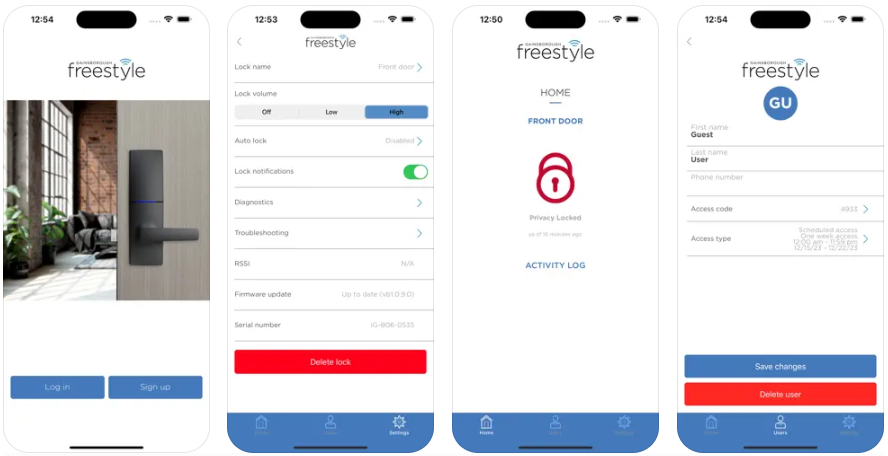
Register a Freestyle account
Step 4
On the iZone Home mobile application:
-
Select MENU from the navigation bar
-
Tap on Devices from the menu options
-
Tap on **Add Device + **on the top right hand corner of the screen
-
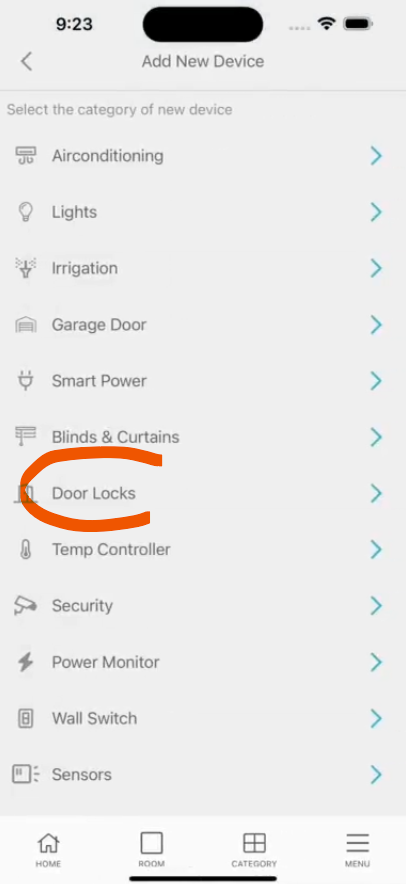
Select Door Locks from the category list
-
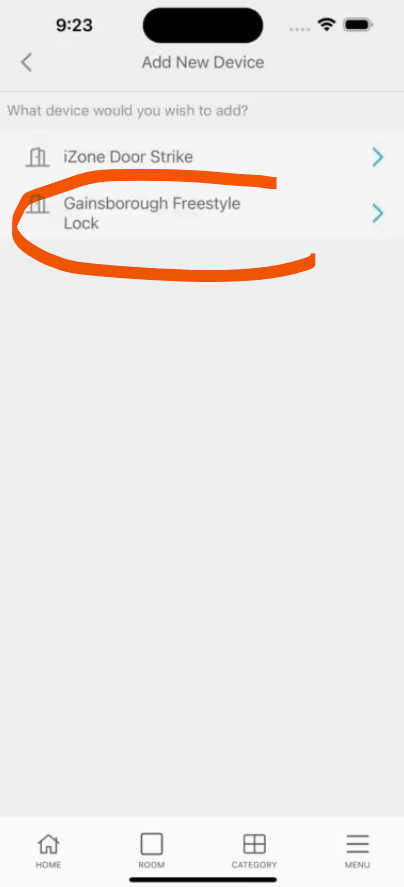
Select Gainsborough Freestyle Lock >
-
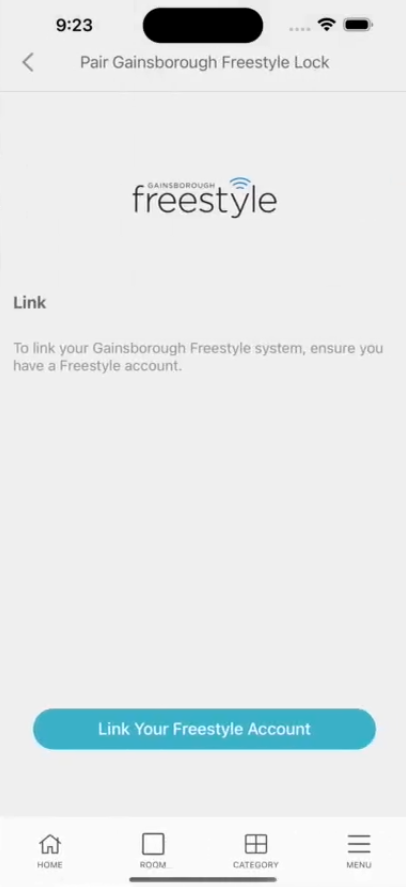
Tap on the Link Your Freestyle Account. This will direct you to the online Freestyle cloud portal.
-
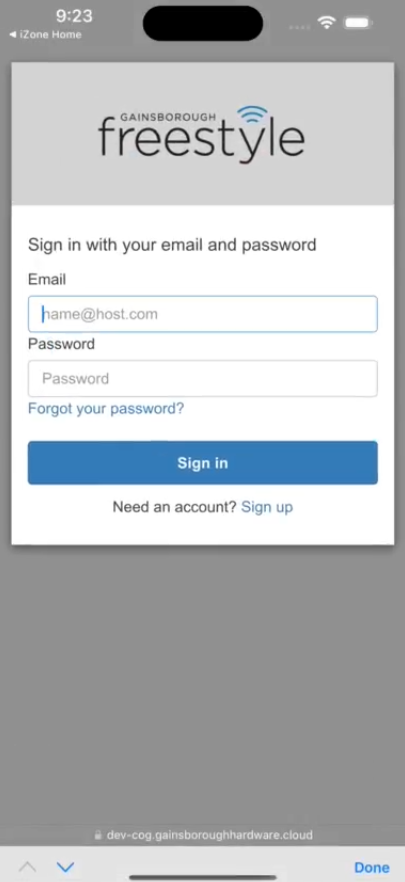
Enter your Freestyle email address and password and tap on Sign in
-
A message will pop up Your Freestyle account has been linked
-
Go back to the iZone Home mobile app
-
Select CATEGORY from the navigation menu
-
Select the Door Locks category
-
Your new door lock will now show in the list
-
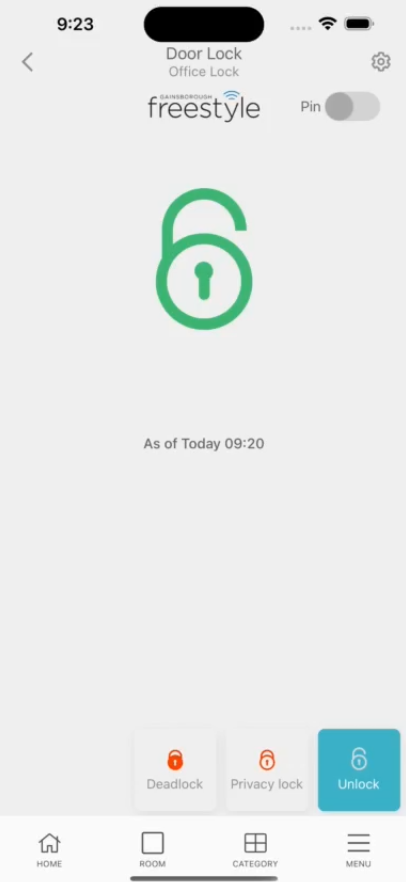
Select the new door lock to see the status of the door lock
-
You can select the Pin checkbox in the top right hand corner of the screen to pin the device to the front screen