Apple HomeKit - Install Guide
Photo & description
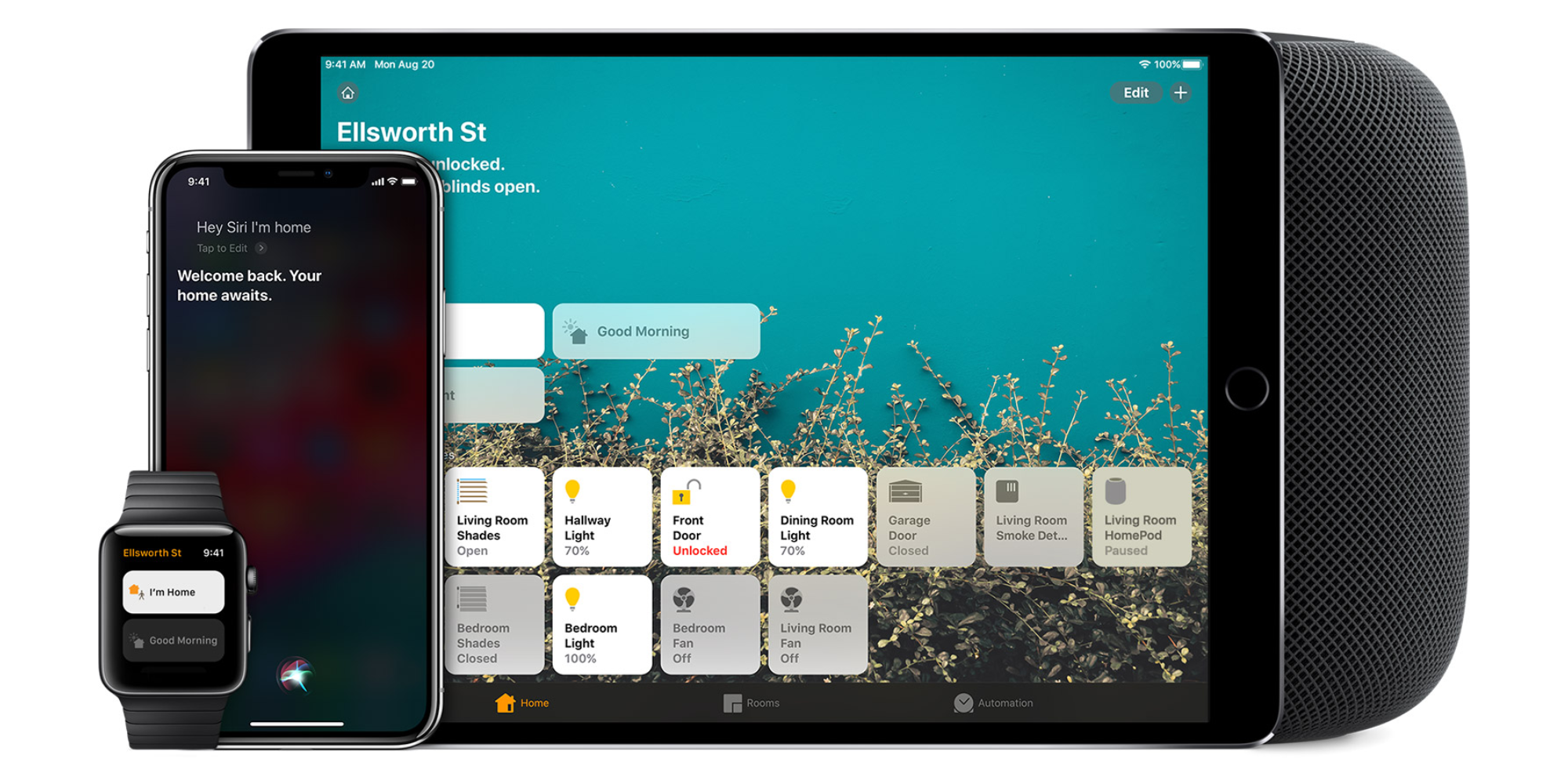
iZone is compatible with Apple HomeKit, however it is not an Apple certified product.
Installation
Before you get started
Here are some useful tips to achieve a better iZone / Apple HomeKit experience:
- Bridge firmware: For compatibility with Apple HomeKit, a new iZone Wi-Fi Bridge (COCB) v4.22 or above is required. Make sure the bridge is connected to the same Wi-Fi network as your iPhone or other Apple devices
- Name the devices, zone names etc. so they are easy to pronounce. If possible, avoid using numbers and symbols in the names
- For a better Siri Home experience, use Siri's jargon. Device / zone names in this guide are highlighted for reference — you'll need to substitute these with the names used on your own system
Link Apple HomeKit & iZone Worldwide accounts
In the iZone App
- Open iZone Worldwide: Open your iZone App and navigate to the Worldwide login
- Menu: Tap on Menu
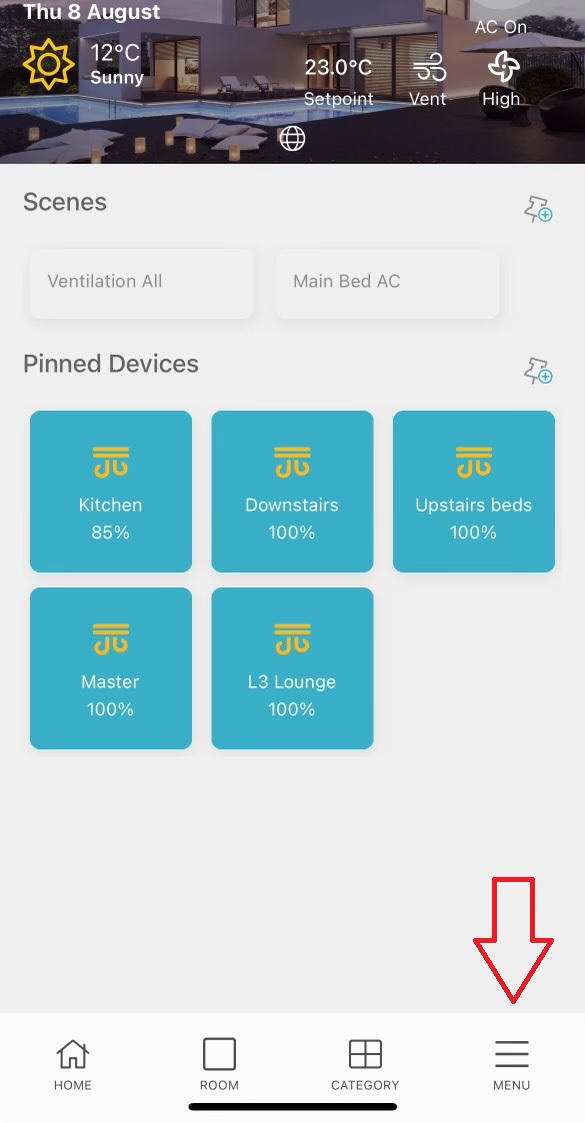
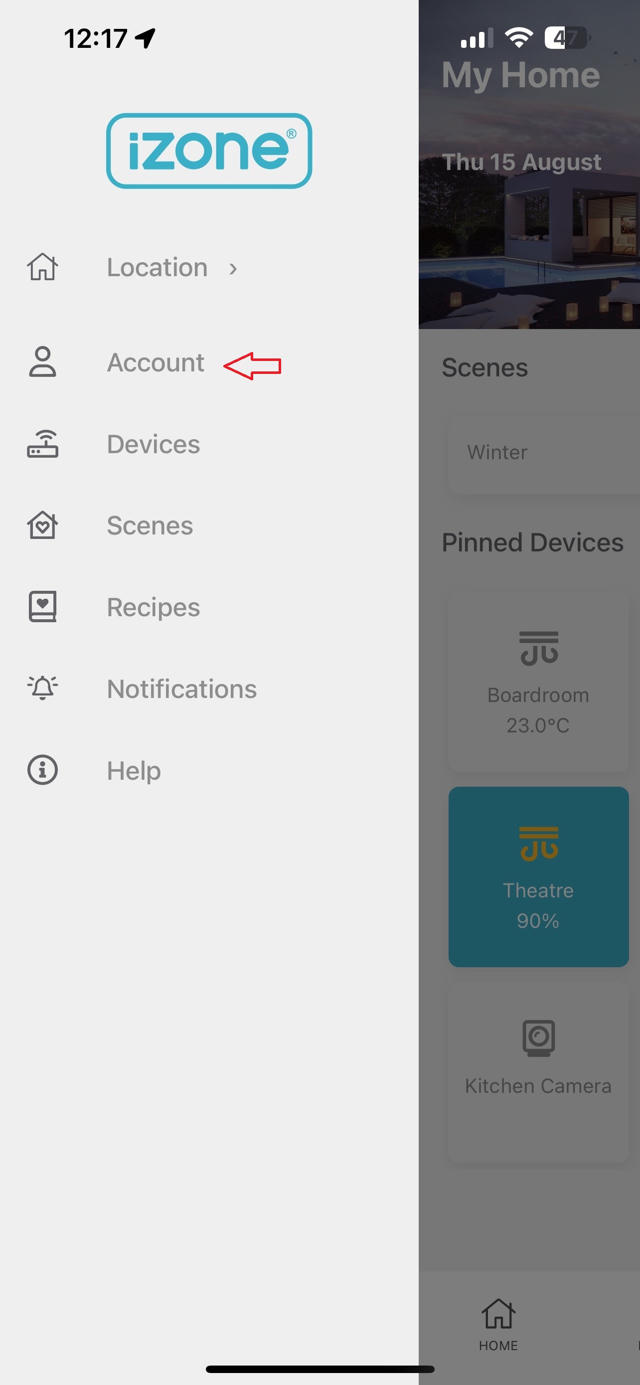
- Account: Tap on Account
- Systems: Tap on Systems
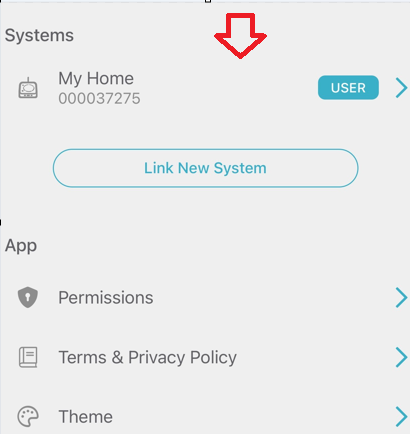
- Pair: Tap on Pair in front of Apple HomeKit
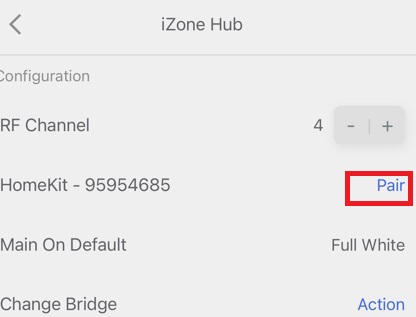
- Manage Device: Then navigate to Device > Manage Device
- HomeKit Code: You will see details of your devices. Select which device you want to pair to Apple HomeKit and record the HomeKit code for use later
- Start: Scroll down to HomeKit Pair and press Start. This will enable the iZone to be discovered by HomeKit
In the Apple Home App
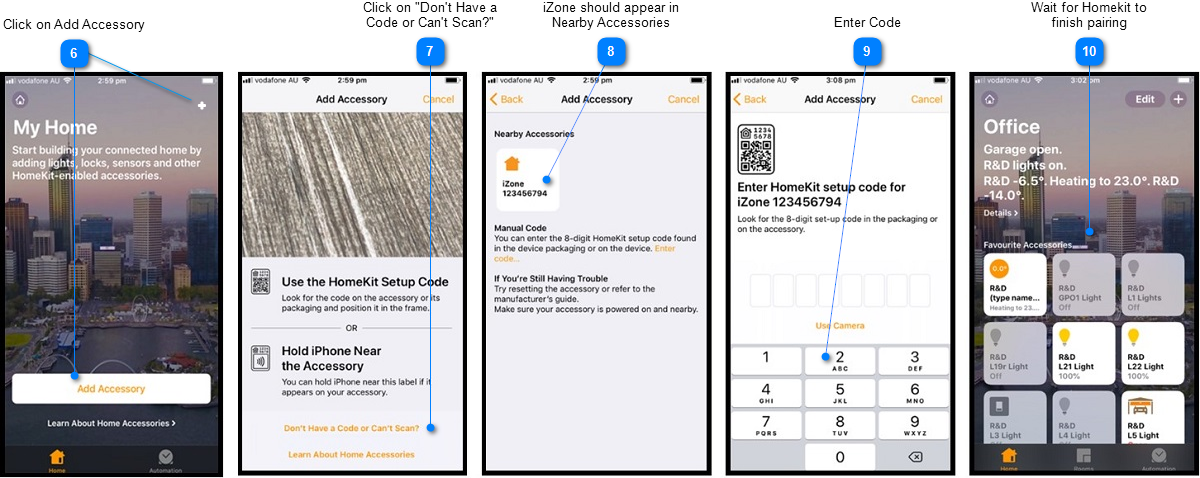
- Open the Apple Home App on your iPhone or iPad
- Click on Add Accessory: On the home page, click on Add Accessory or the + symbol in the top right corner of the screen
- Click on "Don't Have a Code or Can't Scan?": Go down to "Don't Have a Code or Can't Scan?" and press the text
- iZone Should Appear in Nearby Accessories: The screen will display all nearby accessories. If everything is configured correctly, "iZone Home" will appear here — press the icon to start the pairing process
- Enter Code: Input the 8-digit HomeKit set-up code you recorded earlier from iZone Worldwide
- Wait for HomeKit to Finish Pairing: Wait a few moments for HomeKit to complete the pairing process and populate the iZone devices