Nexus Modern Setup Guide
Initialisation screen
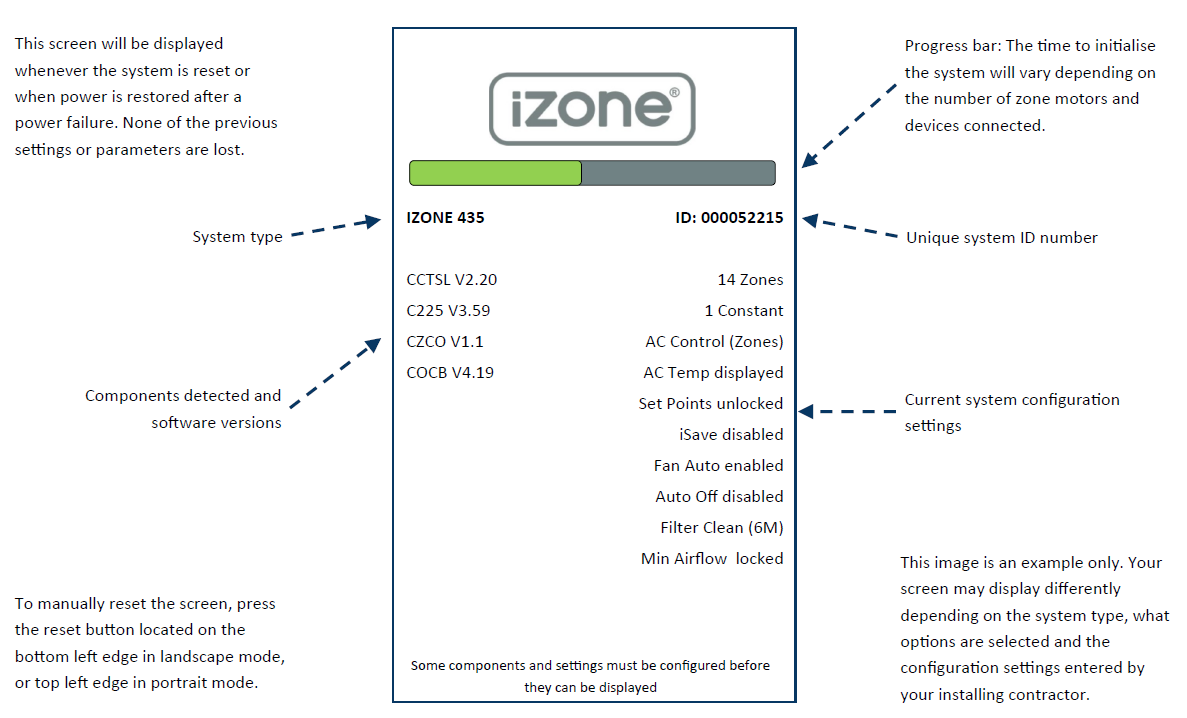
This screen displays whenever the system is reset or when power is restored after a power failure. None of the previous settings or parameters are lost.
- System Type: The iZone system type is shown here
- Unique System ID Number: A unique ID number for this system
- Components Detected and Software Versions: The components detected by the system, along with their software versions
- Current System Configuration Settings: A summary of the current configuration settings
- Progress Bar: The time to initialise the system will vary depending on the number of zone motors and devices connected
- Manual Reset: To manually reset the screen, press the reset button located on the bottom left edge in landscape mode, or the top left edge in portrait mode
Note: some components and settings must be configured before they can be displayed. This image is an example only — your screen may display differently depending on the system type, the options selected, and the configuration settings entered by your installing contractor.
Home screen
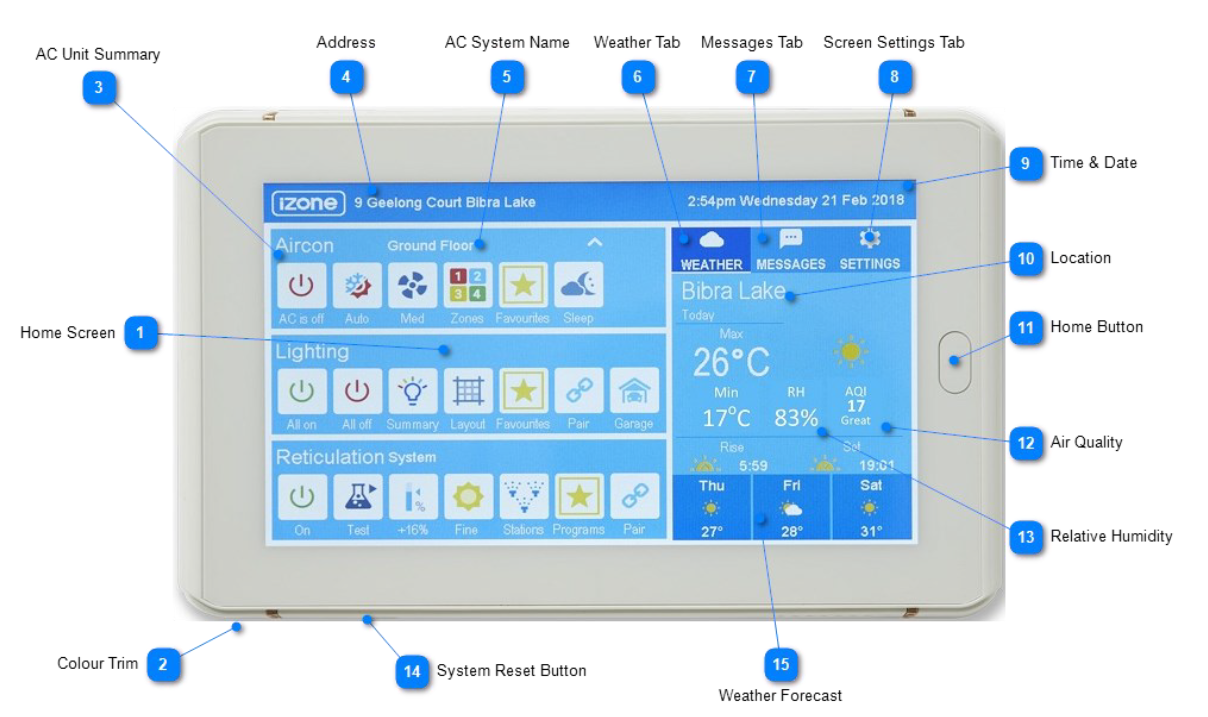
- Home Screen: Typical Modern style home screen
- Colour Trim: Screens are supplied with different colour trim. Remove the trim supplied and replace it with the colour you prefer
- AC Unit Summary: This is the AC Unit Summary. You can control the primary function directly from here, or press the button for more detailed control such as zones
- Address: Tap on the address to change the site address
- AC System Name: Tap on the system name to change it
- Weather Tab: Press the Weather Tab to show the weather on the home page. The system will need to be registered on iZone Worldwide and have an internet connection to show the weather The weather is based on the suburb listed on the iZone Worldwide registration form, or the nearest active weather station
- Messages Tab: Tap on the message tab to review all system messages or alerts. If there is an alert, the Message Tab will be red
- Screen Settings Tab: Tap on the settings tab to access the Screen settings (Beep, Orientation, Child lock, Hide other services, Brightness, Contrast, Saturation, Graphic display style), Configuration, and Scenes
- Time & Date: Tap on the time / date to change it. Depending on the configuration setting, the time and date may also be updated automatically with your mobile devices in the home
- Location: The location is downloaded from the iZone Worldwide server. The system will need to be registered on iZone Worldwide and have an internet connection to show the location, which is based on the suburb listed on the iZone Worldwide registration form
- Home Button: Press the Home Button on the Nexus+ screen to return to the home page at any time
- Air Quality: The AQI is the outdoor Air Quality Index. Press the AQI to display the Outdoor and Indoor Air Quality readings. The system will need to be registered on iZone Worldwide and have an internet connection to display the AQI. The actual AQI is measured at the AQI station closest to your location Indoor Air Quality is only available on the Nexus+ controllers
- Relative Humidity: RH is the outdoor Relative Humidity. Press the AQI to display the outdoor and indoor readings. The system will need to be registered on iZone Worldwide and have an internet connection to display the RH, which is measured at the weather station closest to your location Indoor RH is only available on the Nexus+ controllers
- System Reset Button: The iZone system reset button is located on the side or bottom of the screen depending on screen orientation
- Weather Forecast: The system will need to be registered on iZone Worldwide and have an internet connection to display the current outdoor weather and forecast, measured at the weather station closest to your location
Settings menu
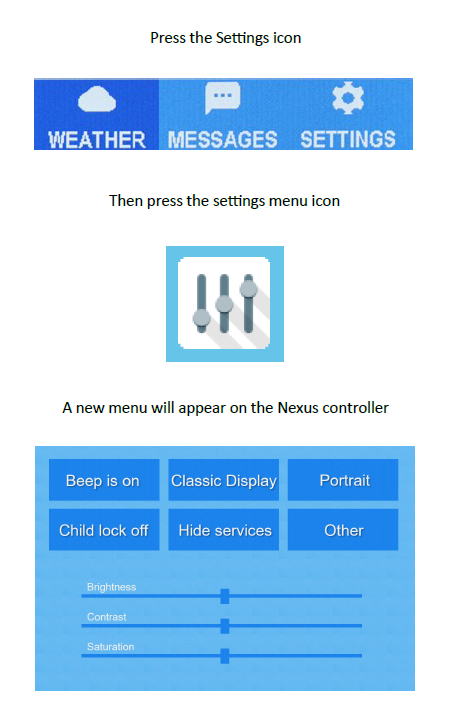
Press the Settings icon, then press the settings menu icon. A new menu will appear on the Nexus controller:
- Beep: Toggle the beep sound on/off when you touch the screen
- Classic Display: Toggle between classic/modern display options
- Portrait: Toggle between portrait/landscape display options
- Child Lock: Enable the child lock feature, which is a lockout code If you forget your code, contact iZone support for help unlocking the screen
- Hide Services: Choose what services are displayed on the home screen — you can hide any services you don't want to appear
- Other: Calibrate the Air Quality sensor here (only available on the Nexus+)
- Sliders: Use the sliders to adjust the brightness, contrast, and saturation to your preference
Configuration menu
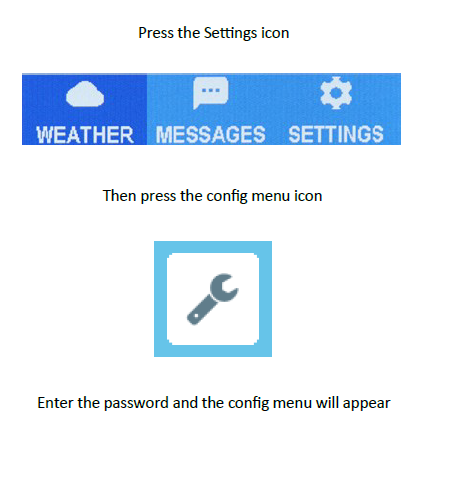
Press the Settings icon, then press the config menu icon, and enter the password to open the config menu.
Warning:
- Only qualified iZone installers should configure the iZone system
- The configuration menu should only be used when first installing the iZone system, or when adding new devices to the system
- Incorrect configuration could result in damage to your air conditioning unit
- Before making any changes to your configuration, visit izonepedia.com.au for more information on how to configure your iZone system
The password for the configuration menu is wamfud.